Version v0.4.0 of the documentation is no longer actively maintained. The site that you are currently viewing is an archived snapshot. For up-to-date documentation, see the latest version.
The Lite web editor
Leoflow Lite ships a small built-in code editor so you can edit a DAG project straight from the browser — no separate IDE, no extra process. It is a Lite-only convenience for the local, single-machine workflow; Pro teams author DAGs in their own editor and ship them through the GitOps flow.
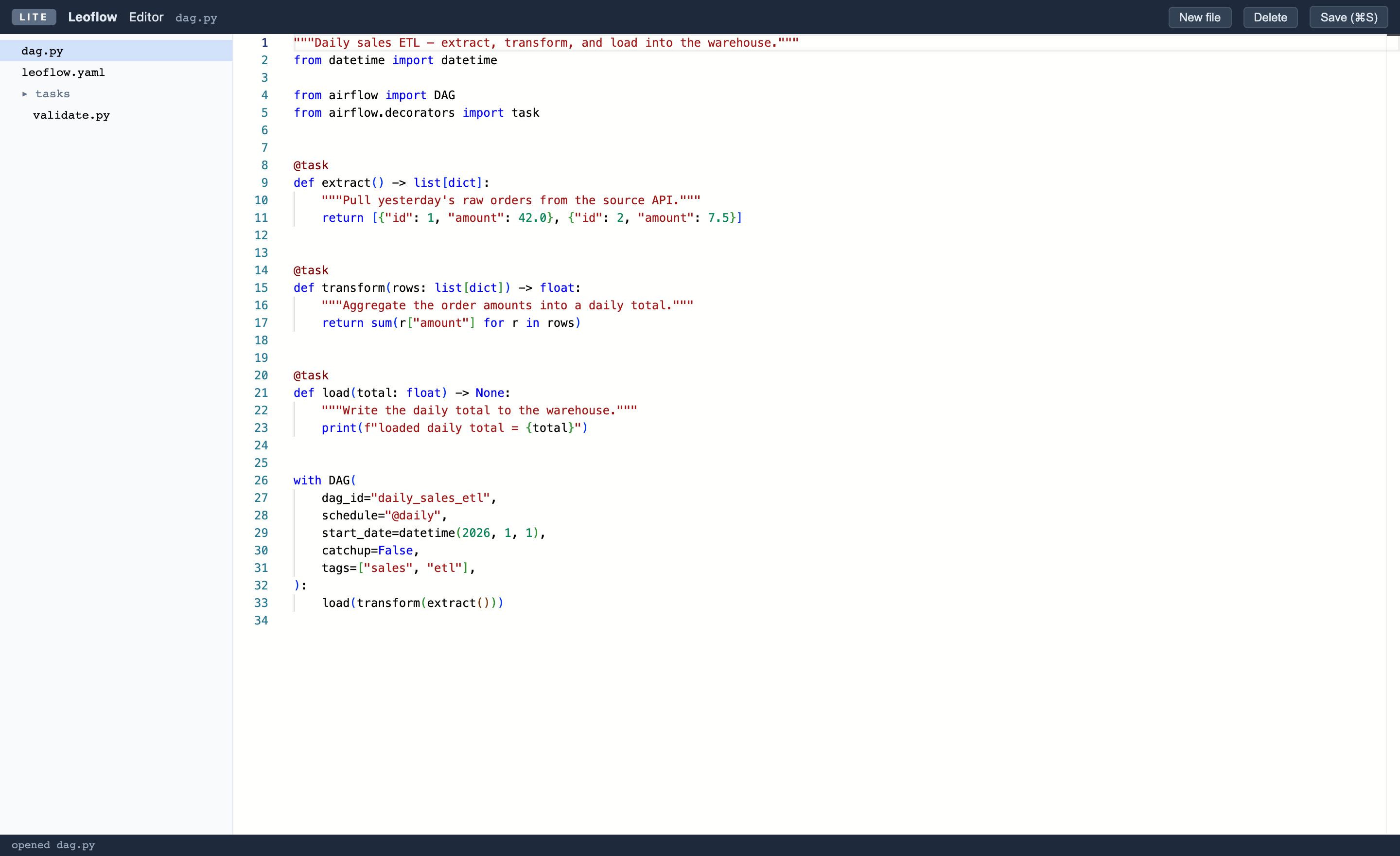
The editor is a thin Monaco surface (the engine behind VS Code) with a file tree — enough to open, edit, save, create, and delete files in your workspace, with syntax highlighting for Python and YAML. It is intentionally not a full IDE: there are no extensions, no integrated terminal, and no debugger. For those, keep using your own editor against the same workspace folder. See ADR 0025 for the rationale.
Opening it
When you run leoflow lite <project>, the served UI shows a small IDE button
(a < > icon) in the bottom-right corner. Click it — the editor opens in a new
tab at /ide, scoped to your project workspace.
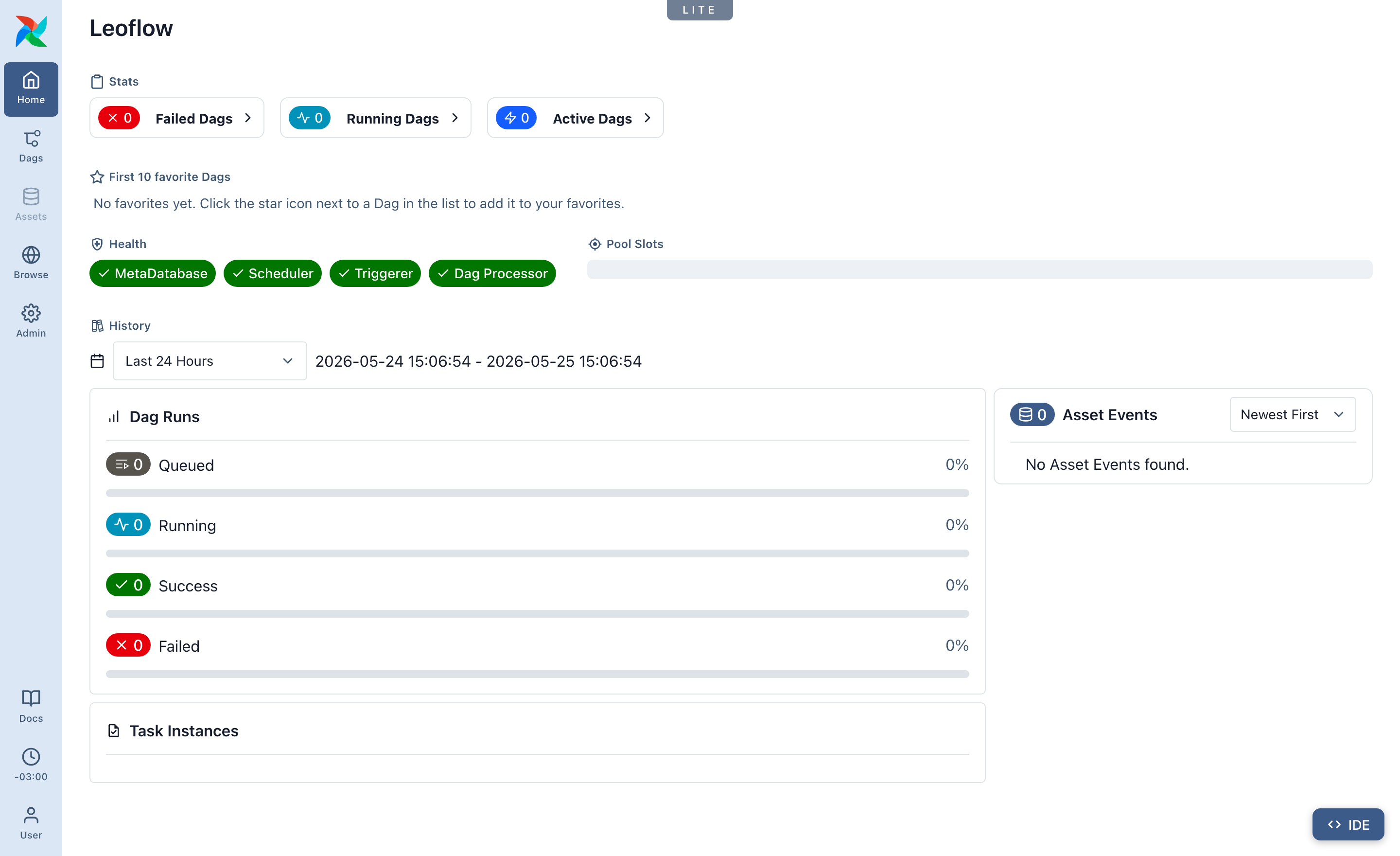
< > icon), bottom-right of every screen.You can also open it directly at http://localhost:8088/ide (or your Lite host
and port).
Append ?open=<path> to jump straight to a file, e.g.
/ide?open=dag.py — handy for sharing a link to a specific DAG.
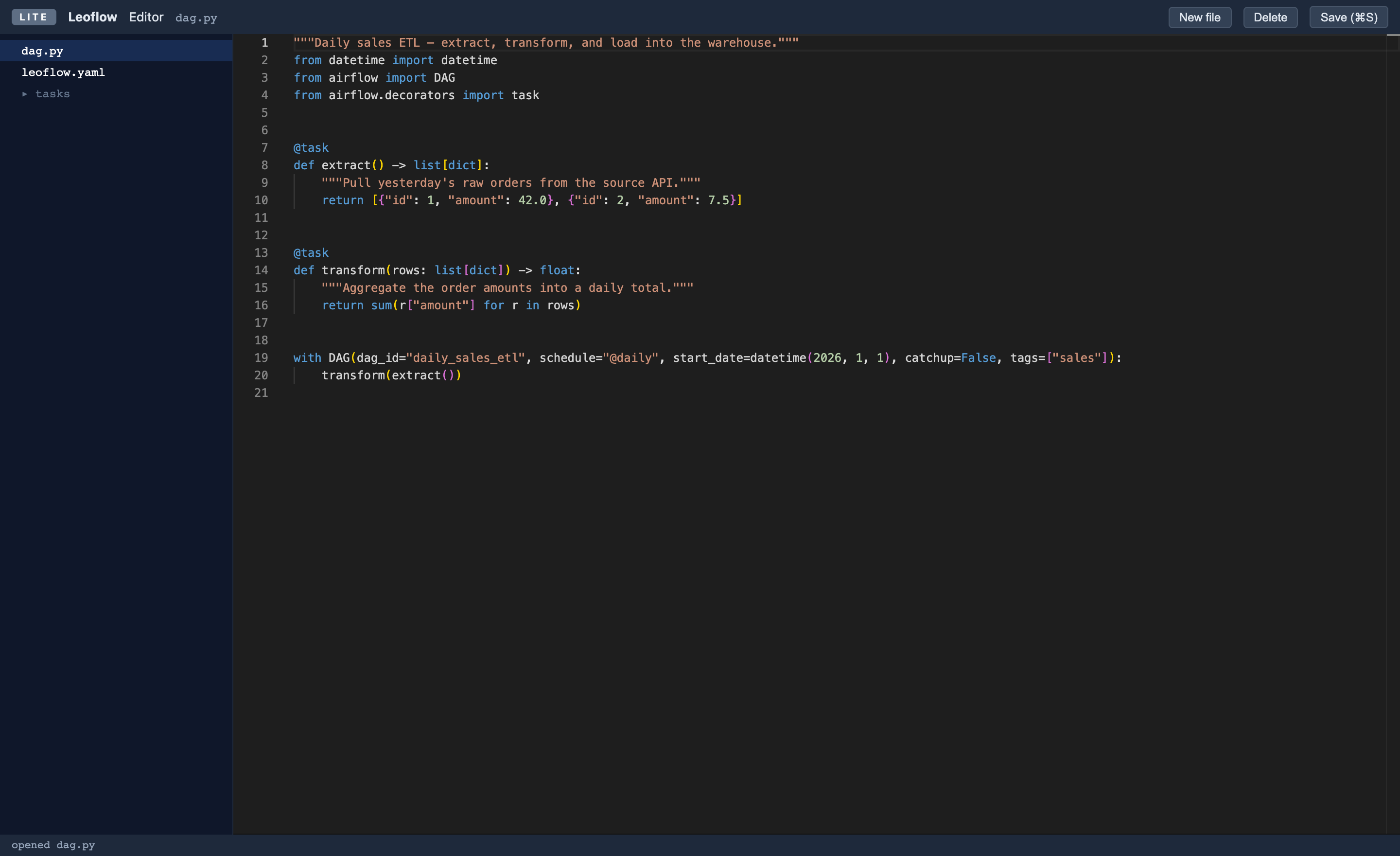
The editor follows your OS light/dark preference (and the IDE button matches the UI’s accent in either theme). Force a theme with a query parameter:
/ide?theme=light
/ide?theme=dark
What it can do
| Action | How |
|---|---|
| Browse the workspace | The left panel lists every file and folder (skipping .git, __pycache__, node_modules, …). Folders show a ▸ / ▾ caret — click it to collapse or expand. Your tree shape persists across reloads. |
| Open & edit a file | Click it in the tree; edits happen in the Monaco editor with Python/YAML highlighting. |
| Save | ⌘S / Ctrl-S, or the Save button. |
| Create a file or folder | New file / New folder — the blue “Create target” chip in the header shows where it will land (a selected folder, or the workspace root). |
| Rename | Rename — works on the selected file or folder, including moves into another folder by typing the new full path. |
| Delete | Delete — removes the selected file or folder. Folder deletes are recursive; the confirmation says so explicitly so a stray click never quietly wipes a tree. |
IDE invariants
A few small UX rules the editor enforces so the cursor never lies to you:
- Selection is sticky. Click a folder once and it becomes the create target for subsequent New file / New folder clicks — even after a tree refresh. To reset back to the workspace root, click the empty area below the tree.
- The “Create target” chip is the truth. Whatever path it shows is where the next create lands. Read it before clicking the button.
- Expanded folders are remembered. The set of open folders is written to
localStorage(leoflow.ide.expanded) so reopening the tab restores your tree shape. Deep-linking with?open=<path>auto-expands every ancestor of that path so you can see where it lives. - Delete is loud about recursion. Folder deletes are recursive on the
server (
os.RemoveAll); the confirmation prompt says “Delete folder "X" and ALL its contents?” so you can never confuse it with a single-file delete.
Saving a file is exactly like editing it on disk — the leoflow lite watcher
picks up the change and hot-reloads the DAG, same as if you had saved from any
editor. (Remember the reload gotcha:
the open Airflow tab does not auto-refresh DAG structure — reload it.)
Provisioning the editor assets
To keep the binary light, the Monaco bundle (~13 MB) is not baked into the
leoflow binary. It is downloaded once, pinned and SHA-256-verified, by:
leoflow setup            # end-user install
# or, for the from-source contributor loop:
leoflow lite provision
into ~/.leoflow/assets/monaco/<version>/. After that first fetch the editor
works fully offline.
If the assets are not present yet (for example, an offline install), the /ide
page shows a short hint to run leoflow setup instead of a broken screen. The
rest of Lite — scheduling, runs, the API — is unaffected.
Security
The editor’s file API reads and writes only inside the configured workspace:
every path is confined to the workspace root, and absolute paths or .. traversal
are rejected. Like the rest of Lite, it is meant for a local / internal-network
or VPN deployment — see the
Lite security note. It is gated to the Lite edition and is never
registered in Pro.